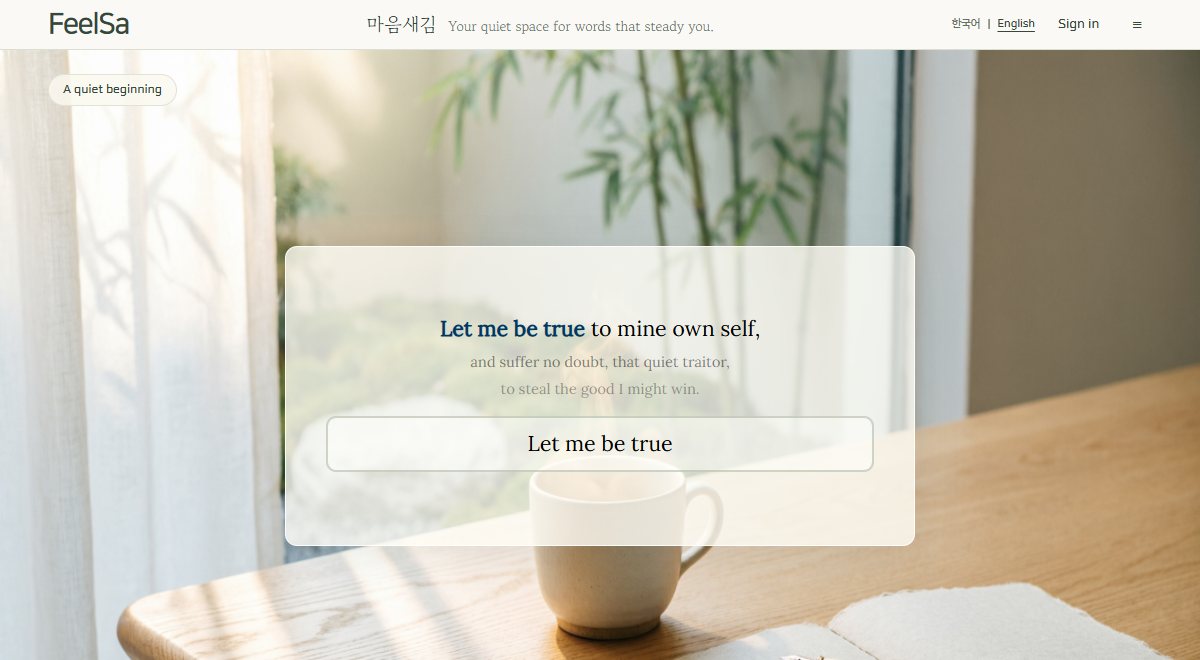
Stay a little longer with the words you might otherwise read and leave behind.
01
A space of your own
FeelSa is a quiet space to type meaningful words, slowly, and spend a little time with yourself.
Choose a passage that comforts you, a thought you want to remember, or words of your own. Let each line be a chance to pause and notice what it means to you. There is no need to rush.
Read a line and take your time typing it. When you finish, the next line appears.
02
Make yourself at home
1
Take your time with each line
Type the line on screen to move to the next. Pause whenever you like, or type a finished passage again.
2
Bring words of your own
Use “Change text” to paste a passage or import a TXT or MD file. Without an account, you can keep one personal text in this browser.
3
Make the space feel like yours
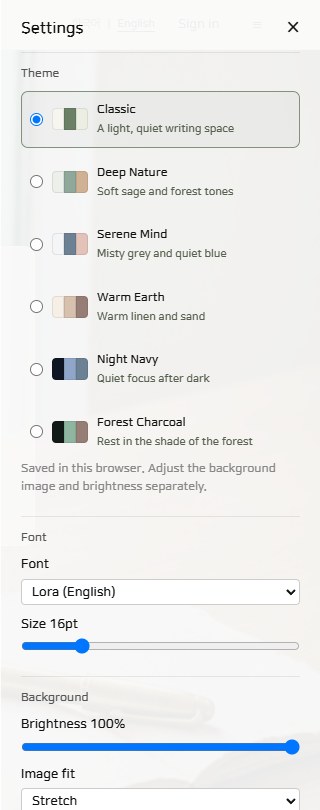
Use “Change image” to choose a background. Open “Change font” or settings to adjust your font, text size, theme, and brightness.
4
Find a comfortable spot
On a computer, drag the panel anywhere outside its input field and buttons. Use “Reset panel position” in settings to bring it back. On smaller screens, the position is fixed.
Choose a font and theme that feel right, then adjust your background and brightness.
03
Choose how you use FeelSa
Saved in this browser
Start without an account
Begin right on the home screen. Your personal text, background image, and typing progress stay in the browser you are using.
You can return in the same browser, but your work does not carry over automatically to another browser or device. Clearing browser data may remove it, so keep a separate copy of any text you want to keep.
Saved to your account
Keep going with an account
Choose “Sign in” on the home screen to join with Google. Keep up to 9 texts in your library and pick up your typing progress on a computer or phone by signing in to the same account.
Background and font settings saved to your account can travel with you, too. A font installed on one device may not be available on another.
Signing in does not upload guest work automatically. In the member screen, you choose which items to bring into your account.
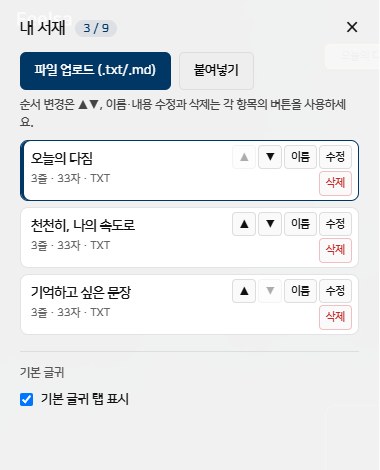
The member screen is currently in Korean. The screenshot below shows the current interface.
Your library lets you add, rename, edit, and reorder texts. This screenshot uses sample content, with no real member information.
A little space. Your own pace.
Begin typing →No subscription fees. Your wallet can relax.